Orientation: Getting Started with Your Platform
5. Assignments — How Submission Works
Several units ask you to submit written work — a reflection, a plan, a covenant, a recording. In Moodle these are called Assignments, and they all work the same way, whatever the module.
Open an Assignment and you will see three things: the instructions (what is being asked of you, how long or detailed it should be, and by when), a submission status table showing whether you have submitted yet, and a button, usually labelled Add submission.
Click Add submission and you will be offered one or both of two ways to hand in your work, depending on how that particular assignment is set up:
- Online text — you type or paste your work directly into a text box on the page, exactly like this Book’s content.
- File submission — you upload a document (Word, PDF, video, audio, whatever the assignment calls for), either by clicking to browse your device or by dragging the file onto the upload area.
Once you are satisfied, click Save changes, and — for assignments that need it — a further Submit button to formally hand it in for marking. Until you click that final Submit button your work sits in a Draft state, which you can keep editing; after Submit, it is locked as your official attempt unless your tutor reopens it for you.
To practise this without any pressure, use the Practice Assignment in this section. It is not graded and nothing you submit there is ever reviewed — it exists purely so your first real assignment, in Module 01, is not also your first time seeing this screen.
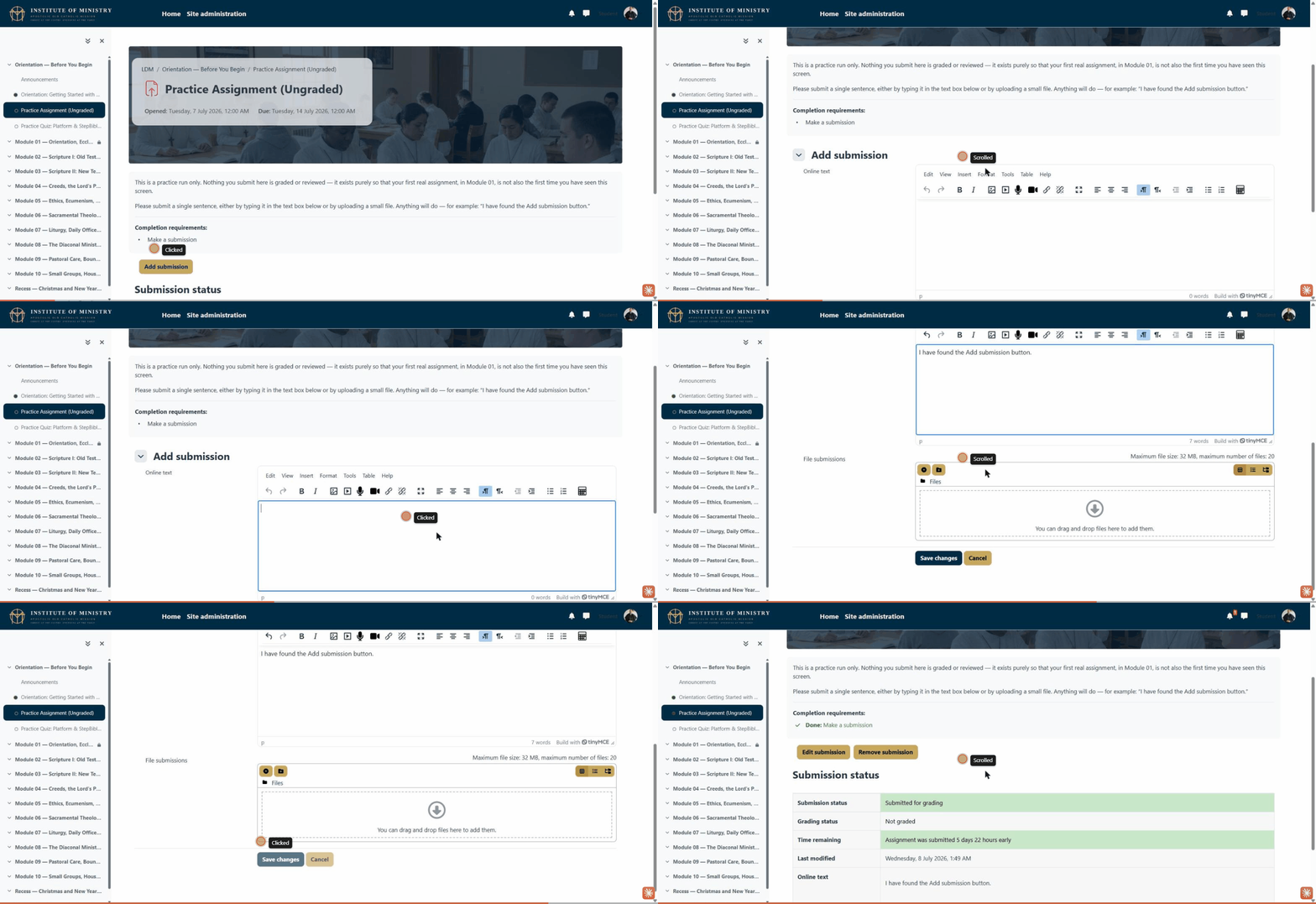
The short recording above shows this end to end: clicking Add submission, entering online text, and saving it.